 UVTESSERA
UVTESSERA – Help
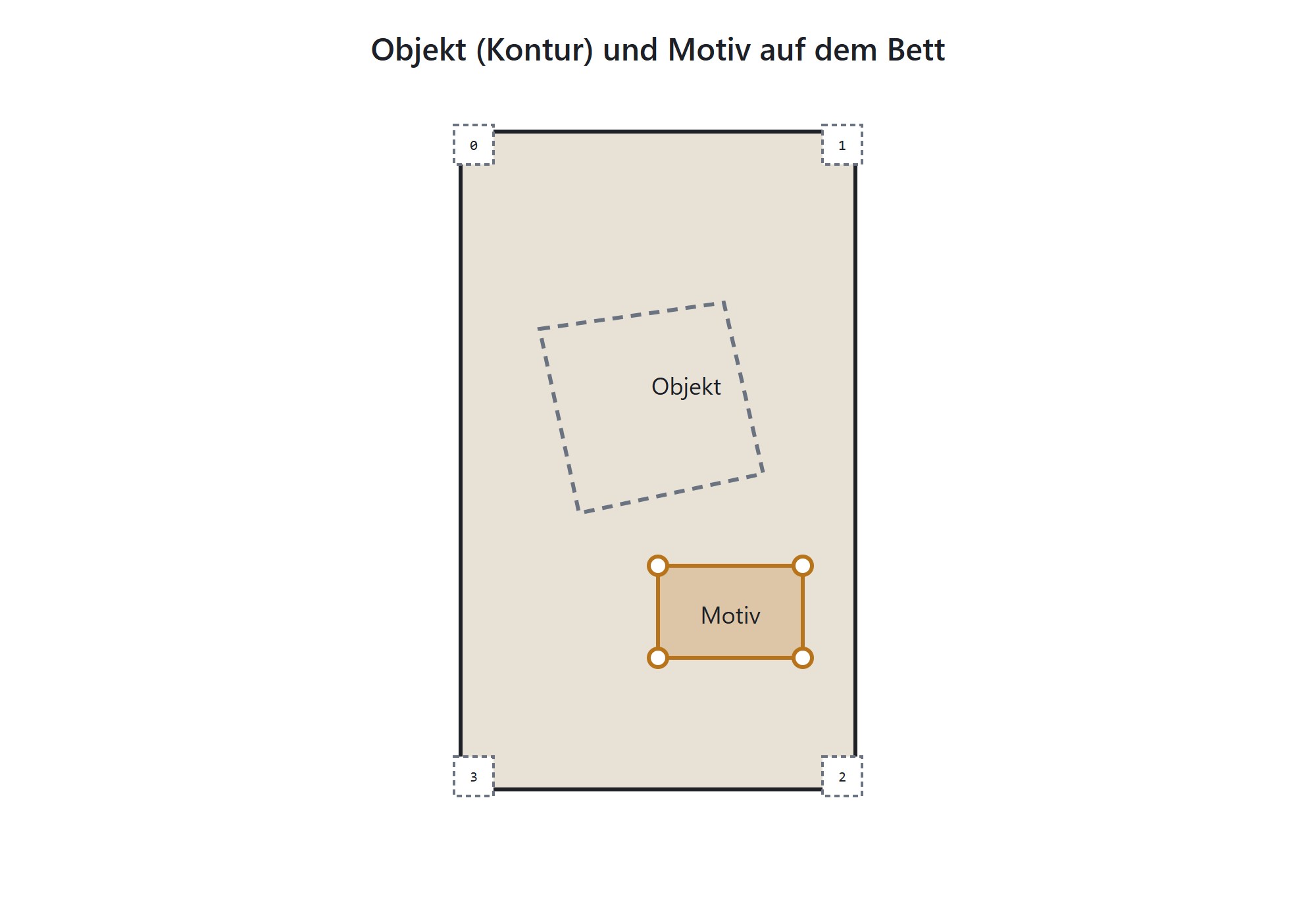
UVTESSERA places motifs precisely on the bed of a UV flatbed printer. You photograph the loaded bed, mark the objects and motifs in the photo, and export a bed-sized print file with the values for ACRORIP. The print itself is still done with ACRORIP.
Quick guide: from photo to print file
The five steps below show the whole process in the app. Details follow in the sections further down.
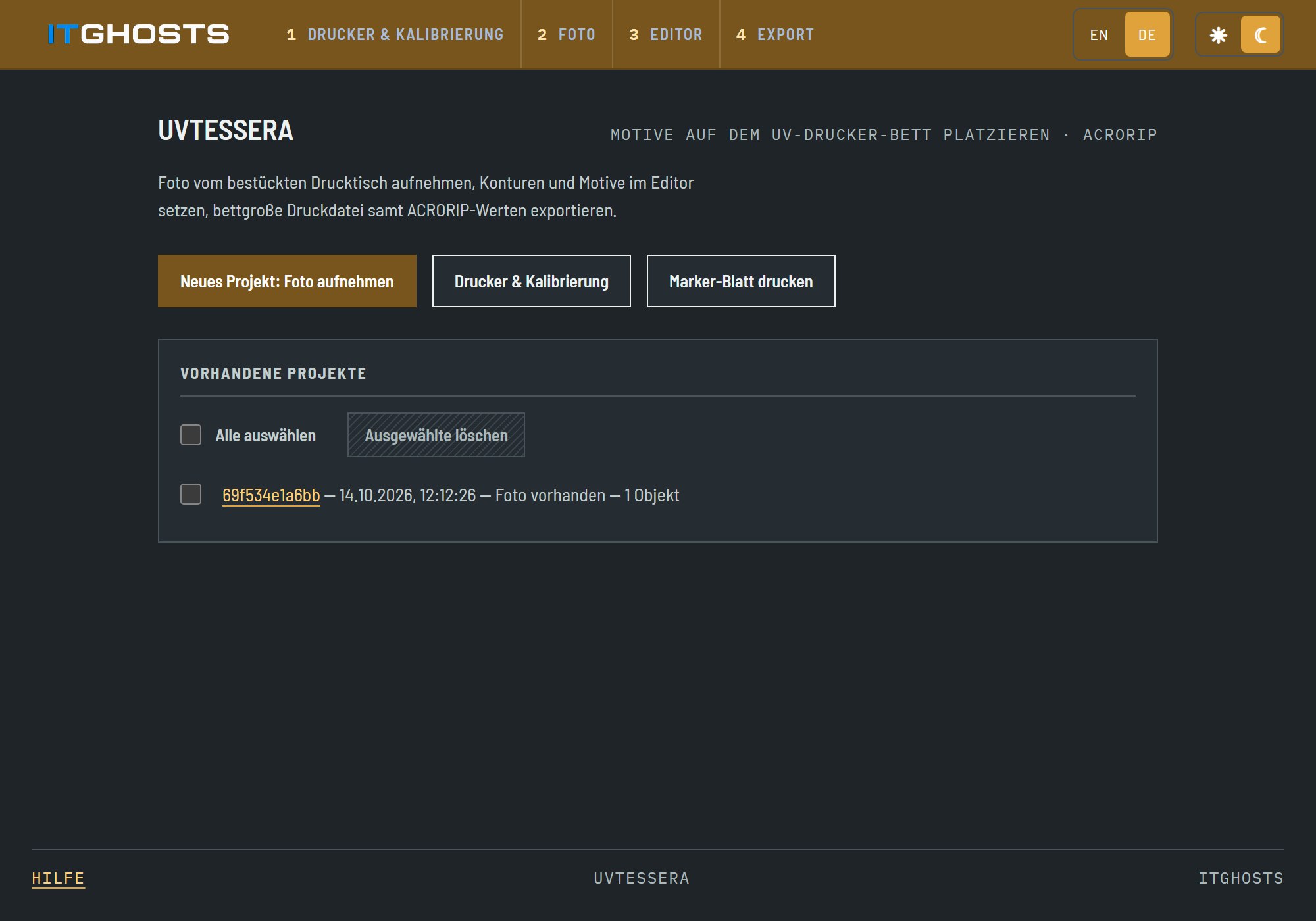
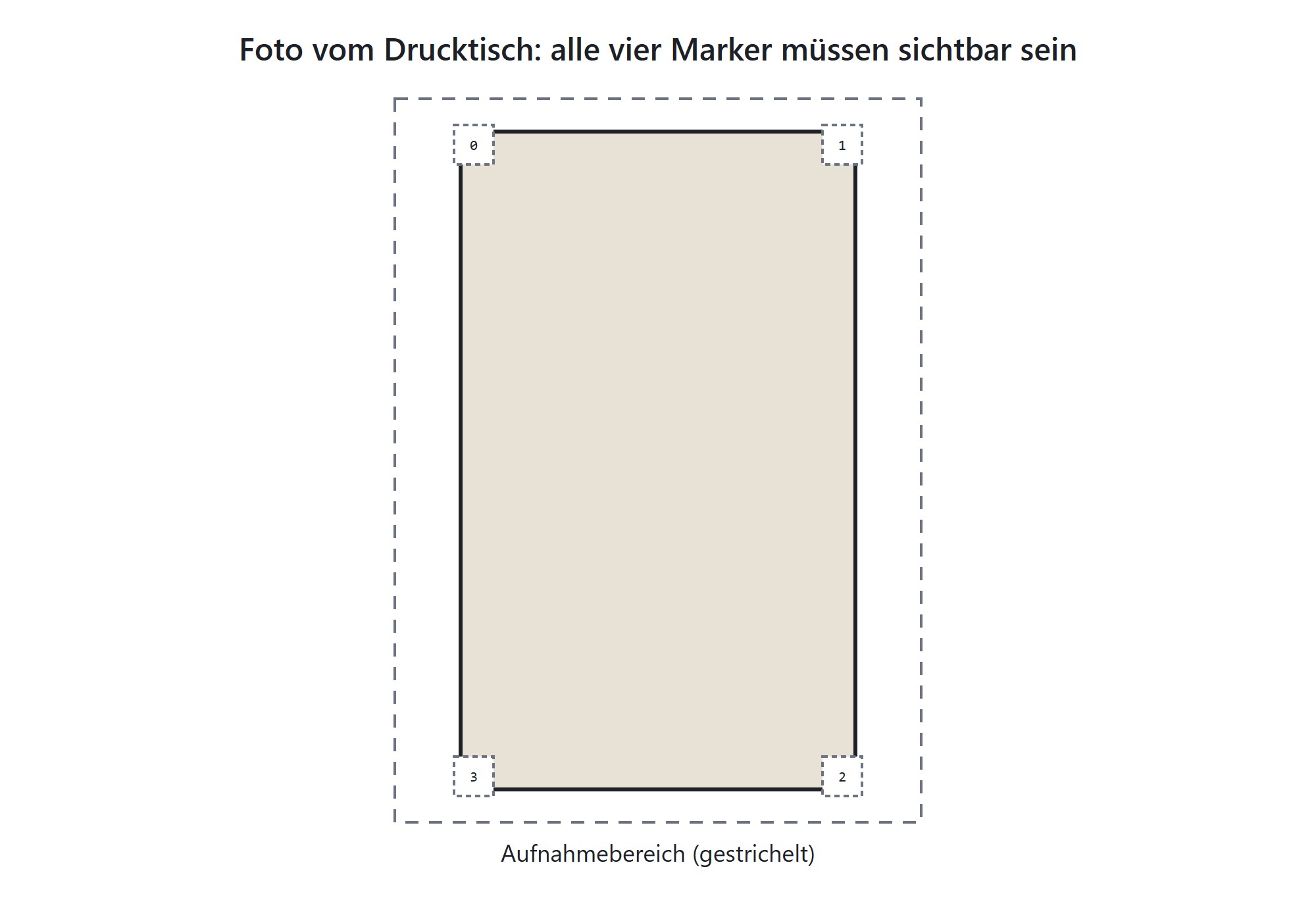
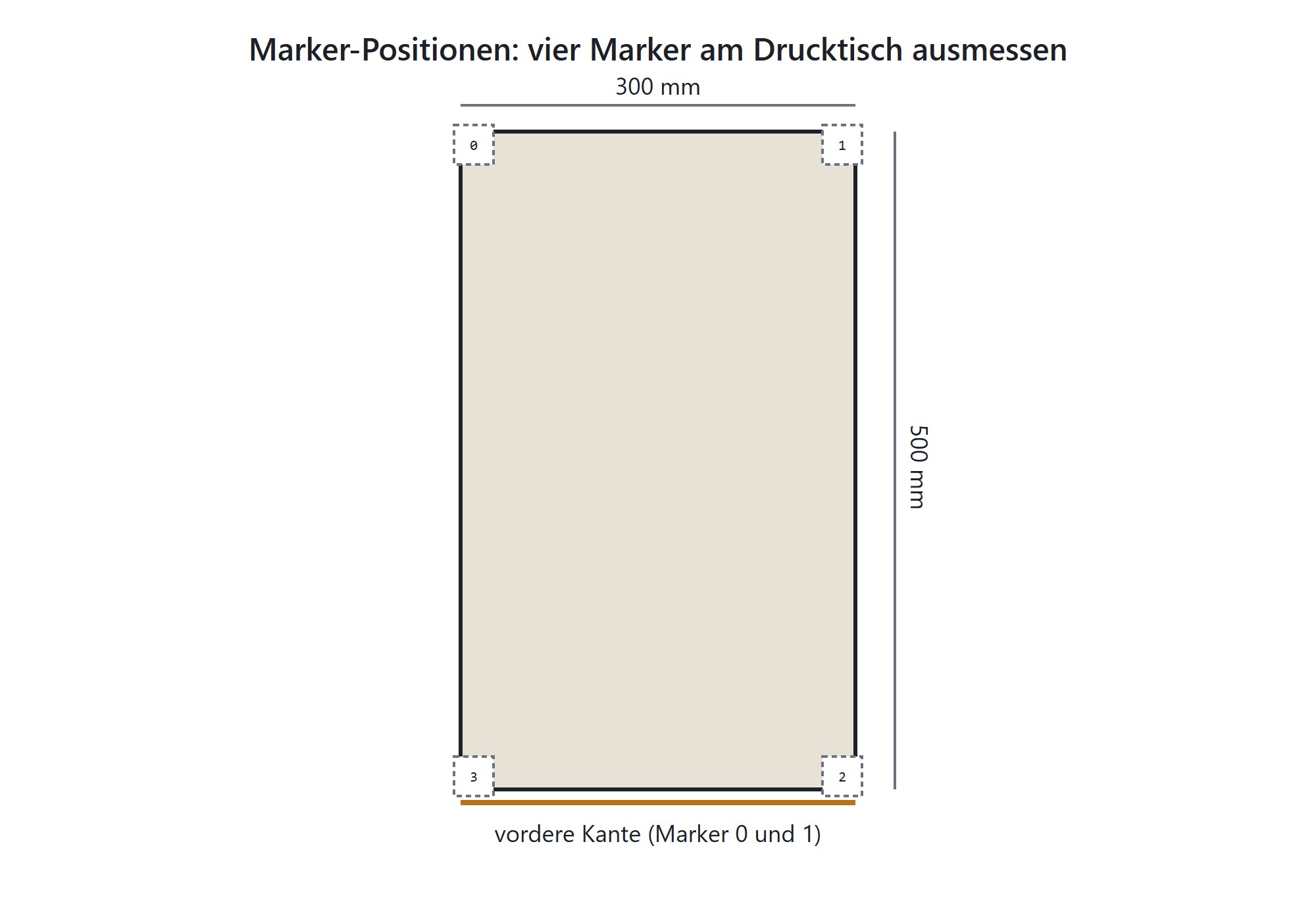
1. Before you start
- Printer and ACRORIP must be installed. UVTESSERA does not control the printer.
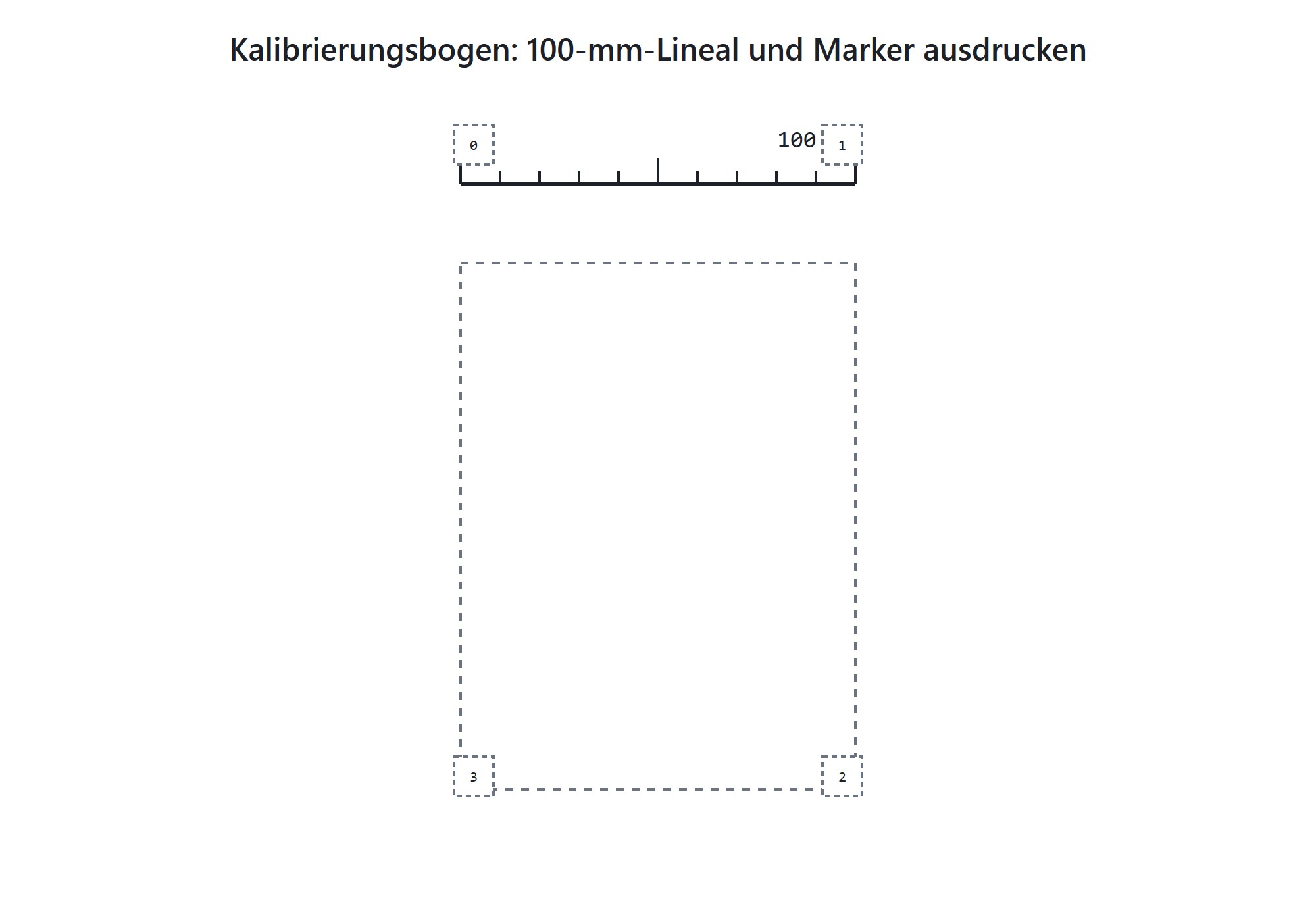
- Four markers (IDs 0–3) are needed on the bed. They are printed on the calibration sheet.
- A license key is needed for marker detection and export. Editing works without it.
2. Setup: printer and calibration
Open Printer & calibration. The app opens this page on first start until the marker positions are confirmed.
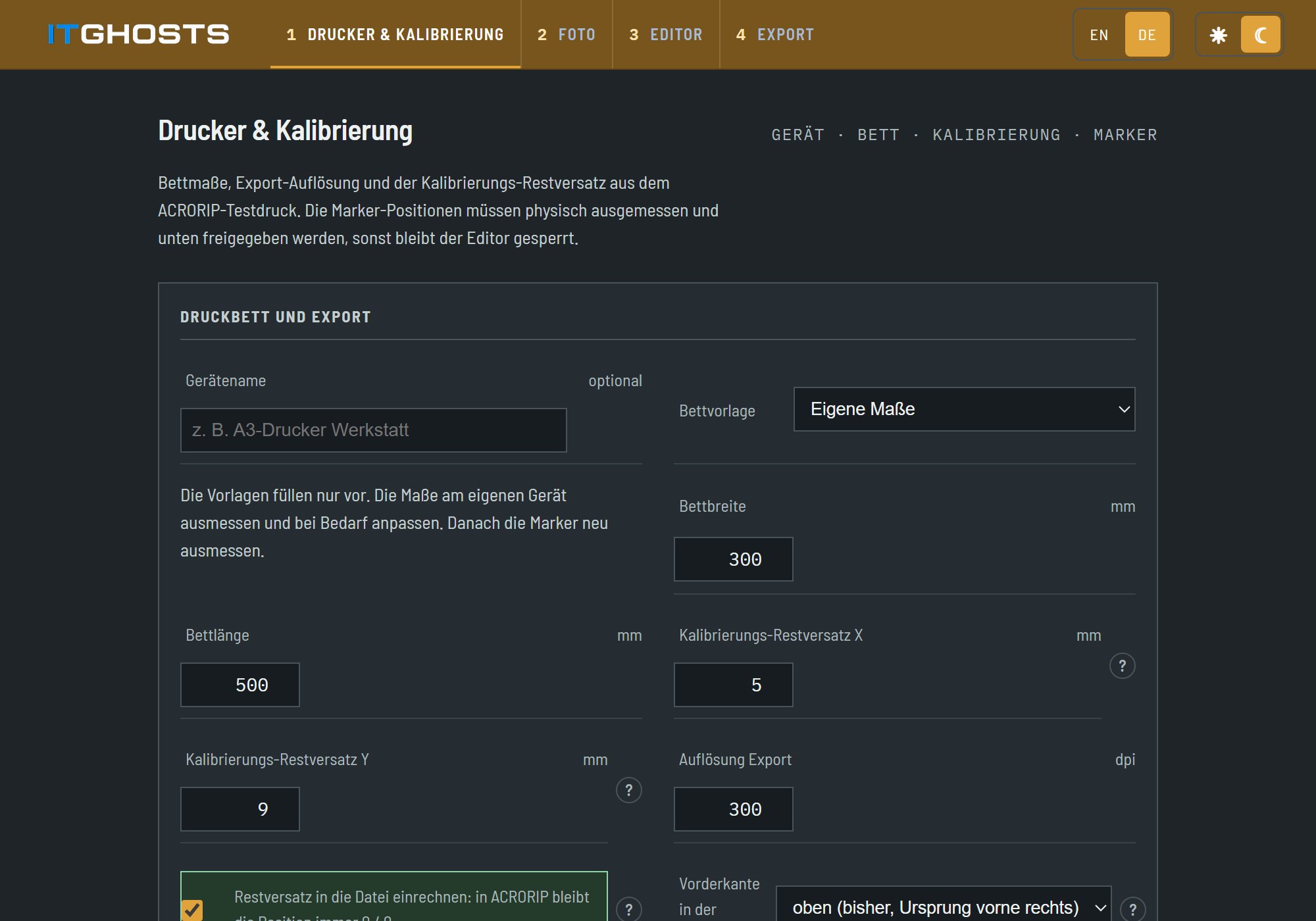
- Bed size: enter the width and length of the print bed in millimetres. The presets (A3, A4) only fill in reference values; measure your own printer.
- Print the calibration sheet with the link on the settings page. Print at 100 % on A4, with no scaling. The 100 mm ruler at the top must measure exactly 100 mm. If it does not, check the print dialog.
- Cut out the stickers along the dashed line, keep the white border, and stick them on the bed with matte tape.
- Measure the marker centres from the front right corner of the bed (X to the left, Y to the back) and enter them in the marker fields.
- Confirm the marker positions with the checkbox and save.
3. New project: take the photo
- On the start page, click New project: take photo.
- Photograph the loaded bed from above, so that all four markers are visible. You can also choose a file (JPEG, PNG or HEIC).
- Click Upload & continue to editor.
A camera on the PC can be used as well. Use the Start camera button on the photo page.
4. Editor
4.1 Markers
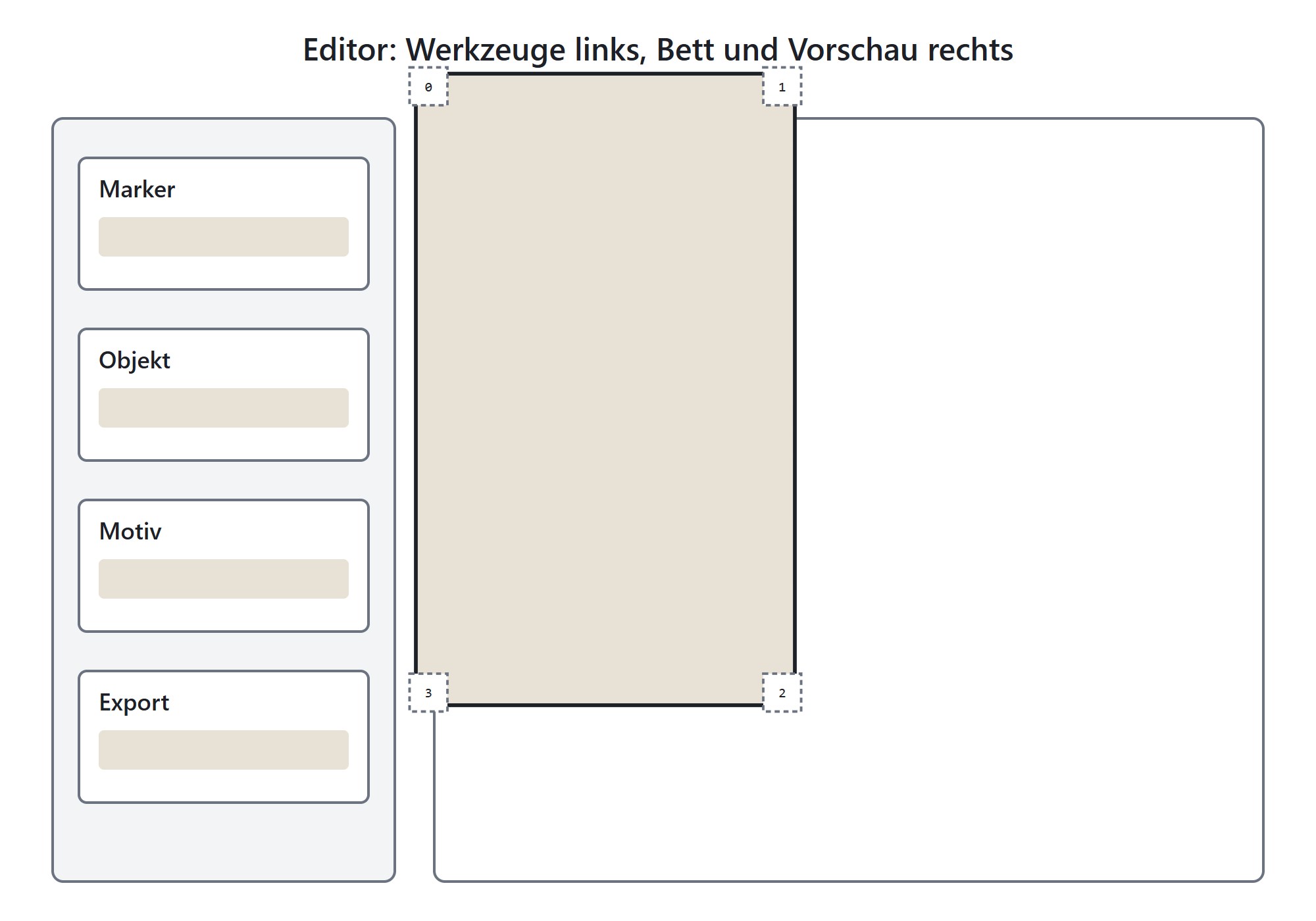
The editor needs the four markers to place the motifs correctly. Click Detect markers automatically, or Set markers manually and then click the four marker centres in the ID order 0, 1, 2, 3.
4.2 Objects (outlines)
- New object: click two opposite corners of a rough frame around the object on the photo. The outline is then detected inside the frame.
- Shape: use a fixed shape (rectangle, rounded rectangle, circle, ellipse) when the detection is not reliable.
- Edit contour points: drag points, click an edge to add a point, double-click a point to delete it.
4.3 Motifs
- Assign motif gives the active object an image. Select the object in the list first.
- Add free motif places an image on a free spot of the bed, without a frame.
- Move, scale, rotate: drag the motif to move it, drag a corner to scale it, use the rotate handle or the angle field to rotate. Hold Shift to rotate in 15-degree steps.
- Fill contour, Align to contour, Fit into contour size the motif to the outline in one step.
- Remove motif removes only the image and keeps the frame. Remove in the object list removes the whole object.
4.4 Preflight
The preflight panel lists warnings before you export, for example when a motif is too small for 150 dpi, lies partly outside the bed, or the photo gives a mirrored bed. Solve the warnings before printing.
5. Export and ACRORIP
- Check that the preflight shows no warnings.
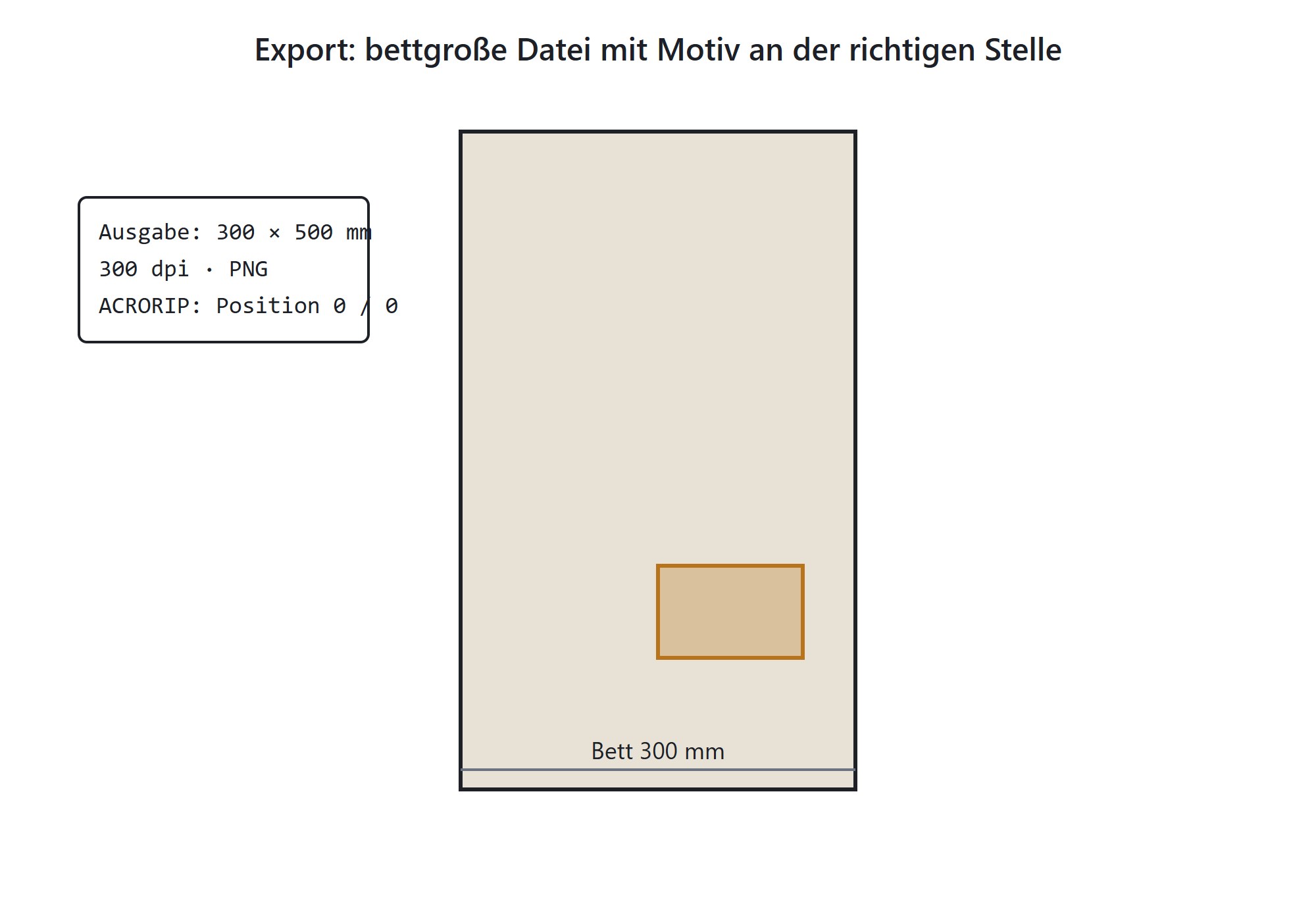
- Click Create & save bed-sized print file. The result is a bed-sized PNG at 300 dpi.
- The values for Size W/H and Pos X/Y are shown in the export panel. Enter them in ACRORIP.
- Load the file in ACRORIP and print. Check the first print on a scrap piece.
Export requires a valid license key. Without a key, marker detection and export are locked, editing stays possible.
6. License
Enter the license key under License on the settings page and click Activate. The key is bound to this computer.
- Without a key: the program opens, the settings and editing work. Marker detection and export are locked.
- The license is checked online once a day. Without internet it stays valid for 14 days after the last check.
7. Problems and solutions
| Message or problem | What to do |
|---|---|
| “The photo gives a mirrored bed” | Left/right or X/Y of the marker positions are probably swapped. Check the marker positions and the front edge. |
| Markers are not detected | Improve the light (no glare, no shadows on the markers), take the photo from above, or set the markers manually. |
| “Only 150 dpi or more …” / motif too blurred | Make the motif smaller or use a larger image. |
| Object is partly outside the bed | Check the bed size on the settings page and move or shrink the object. |
| Print is shifted | Check the residual offset with the test print. Use either the file option or ACRORIP values, not both. |
UVTESSERA – Hilfe
UVTESSERA platziert Motive passgenau auf dem Bett eines UV-Flachbettdruckers. Du fotografierst das bestückte Bett, markierst Objekte und Motive im Foto und exportierst eine bettgroße Druckdatei mit den Werten für ACRORIP. Gedruckt wird weiterhin mit ACRORIP.
Kurzanleitung: vom Foto zur Druckdatei
Die fünf Schritte zeigen den ganzen Ablauf in der App. Die Details folgen weiter unten.
1. Vorher
- Drucker und ACRORIP müssen eingerichtet sein. UVTESSERA steuert den Drucker nicht.
- Vier Marker (IDs 0–3) werden auf dem Bett gebraucht. Sie stehen auf dem Kalibrierbogen.
- Ein Lizenzschlüssel wird für Marker-Erkennung und Export benötigt. Bearbeiten geht auch ohne.
2. Einrichtung: Drucker und Kalibrierung
Öffne Drucker & Kalibrierung. Beim ersten Start öffnet das Programm diese Seite, bis die Marker-Positionen bestätigt sind.
- Bettgröße: Breite und Länge des Druckbetts in Millimetern eintragen. Die Vorlagen (A3, A4) füllen nur Richtwerte ein, miss dein eigenes Gerät nach.
- Kalibrierbogen drucken über den Link auf der Einstellungsseite. Auf A4 mit 100 % drucken, ohne Anpassung. Das 100-mm-Lineal oben muss genau 100 mm messen. Stimmt es nicht, den Druckdialog prüfen.
- Aufkleber ausschneiden an der gestrichelten Linie, den weißen Rand dranlassen, mit mattem Klebeband auf das Bett kleben.
- Marker-Mitten messen von der vorderen rechten Bett-Ecke aus (X nach links, Y nach hinten) und in die Felder eintragen.
- Bestätigen: das Kästchen „ausgemessen“ setzen und speichern.
3. Neues Projekt: Foto aufnehmen
- Auf der Startseite Neues Projekt: Foto aufnehmen wählen.
- Das bestückte Bett von oben fotografieren, sodass alle vier Marker sichtbar sind. Alternativ eine Datei wählen (JPEG, PNG oder HEIC).
- Hochladen & weiter zum Editor klicken.
Auch eine Kamera am PC kann genutzt werden: Auf der Fotoseite den Knopf Kamera starten drücken.
4. Editor
4.1 Marker
Der Editor braucht die vier Marker, um die Motive richtig zu setzen. Marker automatisch erkennen anklicken, oder Marker manuell setzen und danach die vier Marker-Mitten in der Reihenfolge 0, 1, 2, 3 anklicken.
4.2 Objekte (Konturen)
- Neues Objekt: zwei gegenüberliegende Ecken eines groben Rahmens um das Objekt im Foto anklicken. Der Umriss wird darin automatisch erkannt.
- Form: eine feste Form (Rechteck, abgerundet, Kreis, Ellipse) nutzen, wenn die Erkennung nicht zuverlässig ist.
- Kontur-Punkte bearbeiten: Punkte ziehen, auf eine Kante klicken fügt einen Punkt ein, Doppelklick auf einen Punkt löscht ihn.
4.3 Motive
- Motiv zuweisen gibt dem aktiven Objekt ein Bild. Vorher das Objekt in der Liste auswählen.
- Freies Motiv hinzufügen legt ein Bild ohne Rahmen auf eine freie Stelle des Betts.
- Verschieben, skalieren, drehen: das Motiv ziehen, um es zu verschieben, an einer Ecke ziehen, um es zu skalieren, mit dem Drehgriff oder dem Winkelfeld drehen. Mit gedrückter Shift-Taste dreht man in 15-Grad-Schritten.
- Kontur füllen, An Kontur ausrichten, In Kontur einpassen passen das Motiv in einem Schritt an den Umriss an.
- Motiv entfernen löscht nur das Bild und lässt den Rahmen. Entfernen in der Objektliste löscht das ganze Objekt.
4.4 Preflight
Das Preflight-Feld listet Warnungen vor dem Export, zum Beispiel wenn ein Motiv unter 150 dpi liegt, teilweise außerhalb des Betts liegt oder das Foto ein gespiegeltes Bett ergibt. Warnungen vor dem Druck beheben.
5. Export und ACRORIP
- Prüfen, dass das Preflight keine Warnungen zeigt.
- Bettgroße Druckdatei erzeugen & speichern klicken. Ergebnis ist ein bettgroßes PNG mit 300 dpi.
- Die Werte Size W/H und Pos X/Y stehen im Export-Feld. Sie in ACRORIP eintragen.
- Die Datei in ACRORIP laden und drucken. Den ersten Druck auf einem Reststück prüfen.
Der Export braucht einen gültigen Lizenzschlüssel. Ohne Schlüssel sind Marker-Erkennung und Export gesperrt, Bearbeiten bleibt möglich.
6. Lizenz
Den Lizenzschlüssel unter Lizenz auf der Einstellungsseite eintragen und Aktivieren klicken. Der Schlüssel ist an diesen Rechner gebunden.
- Ohne Schlüssel: Das Programm startet, Einstellungen und Bearbeiten funktionieren. Marker-Erkennung und Export sind gesperrt.
- Die Lizenz wird einmal am Tag online geprüft. Ohne Internet bleibt sie 14 Tage nach der letzten Prüfung gültig.
7. Probleme und Lösungen
| Meldung oder Problem | Was tun |
|---|---|
| „Das Foto ergibt ein gespiegeltes Bett“ | Links/rechts oder X/Y der Marker-Positionen sind vermutlich vertauscht. Marker-Positionen und Vorderkante prüfen. |
| Marker werden nicht erkannt | Licht verbessern (keine Spiegelungen, keine Schatten auf den Markern), von oben fotografieren oder die Marker manuell setzen. |
| Motiv zu unscharf (unter 150 dpi) | Motiv verkleinern oder ein größeres Bild verwenden. |
| Objekt liegt teilweise außerhalb des Betts | Bettgröße auf der Einstellungsseite prüfen, Objekt verschieben oder verkleinern. |
| Druck ist verschoben | Restversatz mit dem Testdruck prüfen. Entweder die Datei rechnet ihn ein oder die ACRORIP-Werte werden verwendet, nicht beides. |